

How to Download and Install PandaVPN on Windows
 Sharon
  2026.10.16
Looking for an easy way to protect your internet connection on a Windows PC? PandaVPN offers a desktop VPN experience designed to help you enhance online privacy, encrypt network traffic, and connect to servers in different locations.
Whether you use a Windows laptop or desktop computer, getting started is straightforward. This guide explains how to download the official PandaVPN installer, choose the correct version for your device, complete the installation, and connect to a VPN server.
Why Choose PandaVPN for Windows?
PandaVPN is designed to make VPN connections easy to manage on your Windows computer. With its redesigned Panda Desktop interface, you can browse server locations, search for servers, manage favorites, and connect through the desktop app.
Panda Desktop also includes features such as Kill Switch, which helps protect your connection if the VPN disconnects unexpectedly, and Split VPN, which lets you choose which traffic uses PandaVPN.
The current Windows release supports Windows 10 and later, with separate installers for x64 and ARM64 devices. A legacy version is also available for Windows 7 users.
System Requirements Before Installation
Before downloading PandaVPN, check that your computer meets the basic requirements.
- Operating system: Windows 10 or later for the current Panda Desktop release. A separate legacy version is available for Windows 7.
- Processor architecture: Choose the x64 installer for most Intel- or AMD-based computers, or ARM64 for Windows devices with ARM-based processors.
- Internet connection: An active connection is required to download PandaVPN and connect to a VPN server.
- Available storage: Make sure your computer has enough free disk space for the installer and application.
- Official download source: Download the installer from the official PandaVPN website.

Step 1: Visit the Official PandaVPN Download Page
Open your browser and visit the official PandaVPN download page:
Find the Windows section and select the appropriate installer for your computer.
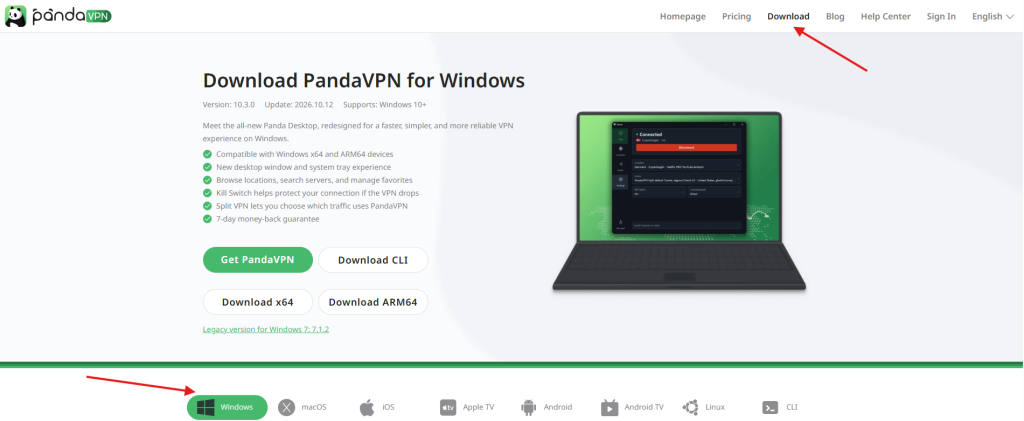
Using the official website helps you avoid unofficial installers that may have been modified or bundled with unwanted software.
Step 2: Choose the Correct Windows Installer
PandaVPN provides different installers for different processor architectures.
- Windows x64: Recommended for most Windows computers running Intel or AMD processors.
- Windows ARM64: For Windows devices powered by ARM-based processors.
- Windows 7 Legacy: For users who still need the older Windows 7-compatible client.
If you are unsure which version your computer uses, follow these steps:
- Open the Start menu.
- Go to Settings.
- Select System, then About.
- Find System type under Device specifications.
Check the information displayed there and select the matching installer.
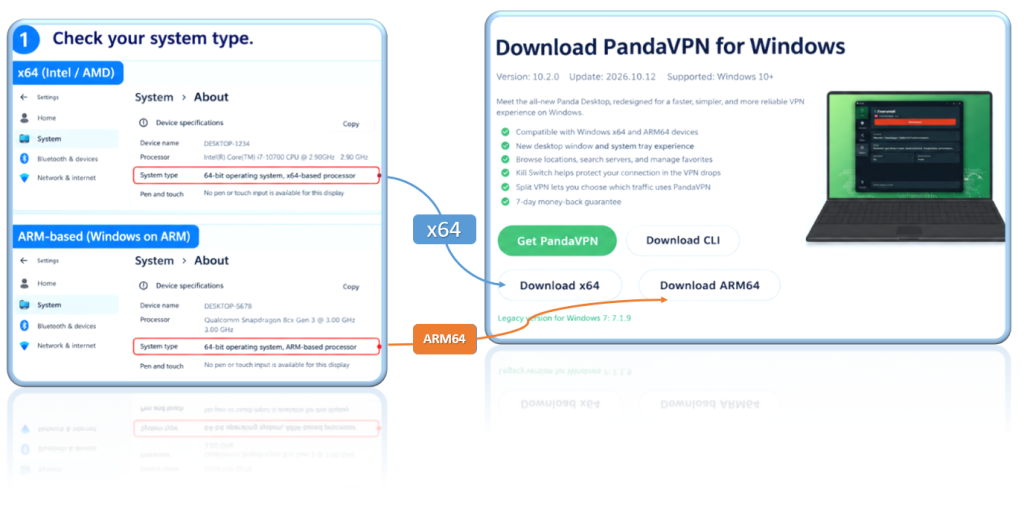
Note: The current Panda Desktop release supports Windows 10 and later. Windows 7 users should select the dedicated legacy version rather than assuming the latest installer is compatible.
Step 3: Download the PandaVPN Installer
After selecting the correct version, click the corresponding download option and wait for the installer to finish downloading.
Depending on your browser, the downloaded file may appear in the Downloads panel or in your computer’s Downloads folder.
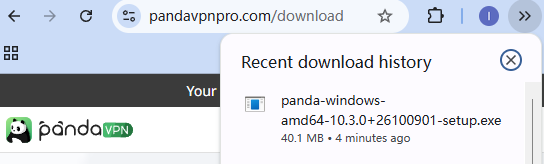
Before opening the file, confirm that you downloaded it from the official PandaVPN website. Avoid installers from third-party download portals, unknown cloud-drive links, or cracked-software websites.
Step 4: Install PandaVPN on Windows
Locate the downloaded installer and double-click it to begin installation.
Follow the on-screen instructions. Windows may display a User Account Control prompt requesting permission to make changes to your device. If you initiated the installation and verified that the installer came from the official source, review the prompt and proceed as appropriate.
Wait for the installation process to finish, then launch PandaVPN.
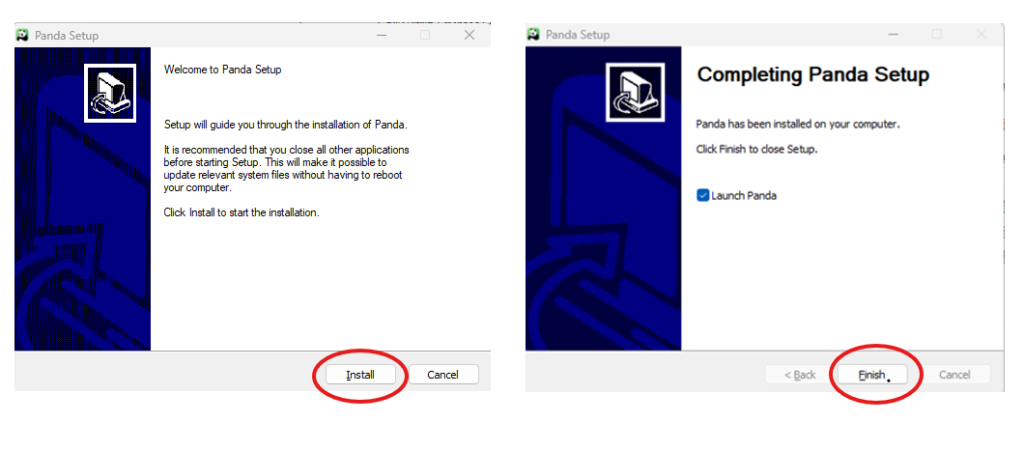
If you are upgrading from the older Panda-Qt client, close Panda-Qt before installing the Windows x64 version of Panda Desktop. The installer can detect and remove the legacy Panda-Qt application during installation.
Step 5: Sign In to Your PandaVPN Account
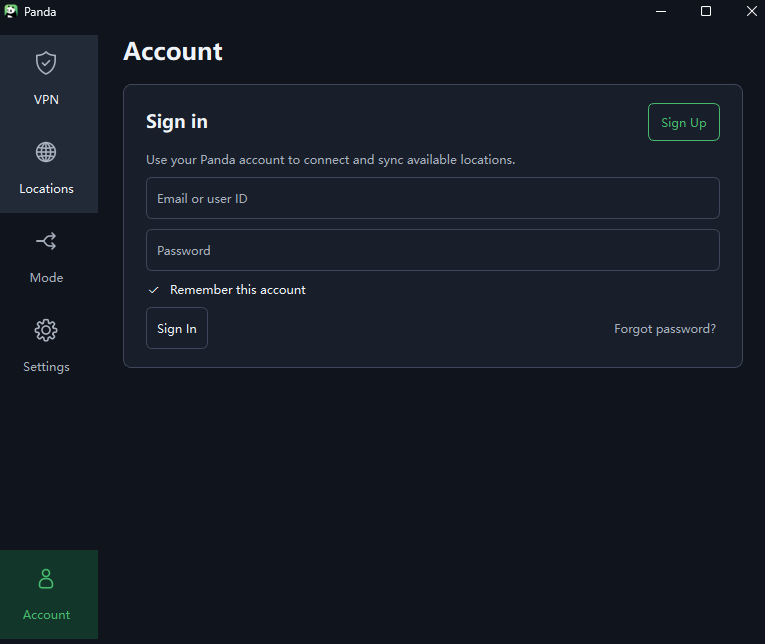
After launching PandaVPN, sign in with your existing account.
If you are new to PandaVPN, visit the official website to create an account and choose a subscription plan. Follow the account setup instructions to obtain your digital account and set your security password.
Once signed in, you can access the app’s server selection and connection features.
Step 6: Choose a Server and Connect
With PandaVPN open, browse the available server locations or use the search function to find a location that suits your needs.
Select a server and click the connection button. Wait until the app confirms that the VPN connection is established.
Once connected, your internet traffic is routed through the VPN tunnel. You can then continue browsing, streaming, or using online applications while the VPN remains connected.

For everyday use, you can choose a nearby server to help reduce unnecessary network distance. Actual speeds and latency depend on your internet connection, server load, routing, and other network conditions.
Troubleshooting Common Windows Installation Problems
If PandaVPN does not install or launch as expected, try the following checks.
The installer will not open. Make sure the download completed successfully and that you selected the correct installer for your processor architecture. If necessary, download the installer again from the official PandaVPN website.
Windows displays a security warning. Verify the source of the installer before proceeding. Do not automatically dismiss security warnings or disable antivirus protection just to complete an installation. If the warning persists for the latest official installer, contact PandaVPN support for guidance.
PandaVPN will not launch after installation. Restart the application or your computer, then check whether you installed the latest version compatible with your Windows release. If the problem continues, reinstall the client using the official installer and contact support with the error message and your Windows and PandaVPN version details.
PandaVPN cannot connect to a server. Check that your internet connection is working, try a different server, and restart the app. Firewall, security software, or network settings may also affect VPN connectivity.
The internet stops working after connecting on Windows 7. Windows 7 is an older operating system and may have compatibility limitations. Use the Windows 7-compatible legacy client and consult the official Windows support page if the issue continues.
For additional help, visit the PandaVPN Windows FAQ.
Frequently Asked Questions
Which Windows versions does PandaVPN support?
The current Panda Desktop release supports Windows 10 and later. A separate legacy client is available for Windows 7. Check the official download page for the appropriate installer.
Should I download Windows x64 or ARM64?
Most computers with Intel or AMD processors use x64. Windows devices with ARM-based processors need the ARM64 version. You can check your architecture under Settings > System > About.
Is PandaVPN available for Windows 7?
Yes. PandaVPN lists a dedicated legacy version for Windows 7. Because Windows 7 is an older operating system, compatibility and connection behavior may differ from newer Windows versions.
Where should I download PandaVPN for Windows?
Download PandaVPN directly from the official website:
https://www.pandavpnpro.com/download
Avoid unofficial download websites and modified installers.
What should I do if PandaVPN fails to connect?
First, check your internet connection and try another server. You can also restart the app or computer. If the issue persists, consult the official Windows FAQ or contact PandaVPN support with the error details.
Download PandaVPN for Windows Today
Installing PandaVPN on Windows takes just a few steps: choose the correct installer, download it from the official website, follow the installation prompts, and sign in to connect.
Whether you use a Windows laptop or desktop computer, make sure you select the version compatible with your system and download the software from an official source.
Ready to get started?
- Download PandaVPN: Official Download Page
- Get Windows Installation Help: PandaVPN Windows FAQ
- Visit the Official Website: PandaVPN

Related Posts



Featured Posts